Introduction
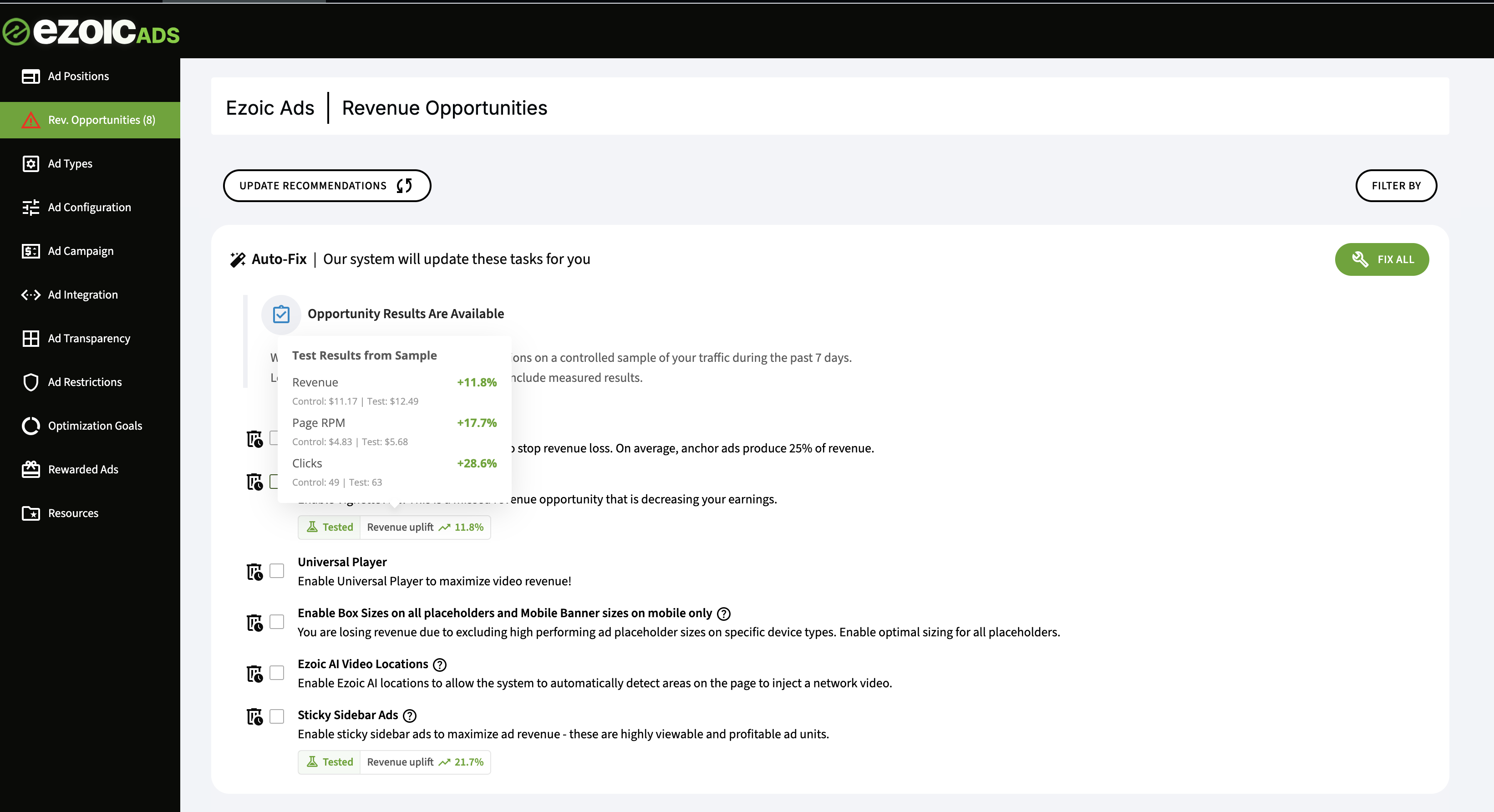
The Revenue Opportunities tool uses Revenue Testing to provide data-backed recommendations for your site. By automatically testing select settings on a small, controlled sample of your traffic (approximately 1%), Ezoic’s AI measures the exact revenue uplift before suggesting you apply the change site-wide. This low-risk approach ensures that every optimization you make is proven to increase your earnings without impacting your overall performance.
Troubleshooting
- Accessing Urgent Revenue Issues:
- Issue: Users may have difficulty locating the Urgent Revenue Issues tool in the dashboard.
- Solution: To access Urgent Revenue Issues, visit the main publisher dashboard and scroll down to the Ad Partner Estimated Earnings row. Here, you will see the Urgent Issues Impacting Revenue notification. Clicking this will take you directly into Ezoic Ads, where the full Urgent Revenue Issues list is available in the Recommendations tab.
- Automatically Fixing Issues:
- Issue: Users may not know how to apply automatic fixes.
- Solution: In the Recommendations tab, the Auto-Fix section lists recommendations that can be automatically completed by the Ezoic system. You can select individual tasks and click "Fix Selected" or click the "Fix All" button to address all listed recommendations.
- Manually Fixing Issues:
- Issue: Users may be unsure how to manually implement recommendations.
- Solution: The Manually Fix section allows users to complete tasks on their own with the help of an attached support guide. Alternatively, users can reserve time with their Publisher Success Manager for further assistance. If issues persist after attempting a task, users can select the "Continue Request" button to get dedicated help from the Ezoic team. Depending on the recommendation, the task will either show as "requested" or "ticket submitted," with updates available on support.ezoic.com.
- Managing Recommendations:
- Issue: Users might not know how to dismiss irrelevant recommendations or retrieve dismissed ones.
- Solution: Users can dismiss specific recommendations by clicking the trash can icon, which removes them from the master list. To find dismissed recommendations, use the “Filter By” actions menu.
- Filtering Recommendations:
- Issue: Users may have trouble filtering recommendations.
- Solution: To narrow down specific categories, use the “Filter By” button to filter by Focus, Category, Product, and Action. After selecting the filters, click Apply to populate the relevant recommendations. Use the “Reset Filters” button to clear any previously chosen filters and view all recommendations across products.
Common Symptoms
Common symptoms that indicate the presence of urgent revenue issues include:
- Notification in the Dashboard: When visiting the main publisher dashboard, you may see an "Urgent Issues Impacting Revenue (#)" notification under the Ad Partner Estimated Earnings row. This is a direct indicator that there are critical revenue-related settings or features that need attention.
- Suboptimal Earnings: Lower than expected earnings or a noticeable drop in revenue can suggest that there are settings or features not being fully optimized or utilized.
- Disabled Features or Products: If you find that certain Ezoic products or features are disabled or not used to their fullest potential, it could contribute to revenue issues. This can be noted through the recommendations list in the Ezoic Ads section.
- Multiple Recommendations: A long list of recommendations under the Urgent Revenue Issues tab suggests several areas that need optimization or correction. These recommendations are categorized under Auto-Fix and Manually Fix sections.
These symptoms help identify that there are actionable items to address in order to optimize revenue and ensure all Ezoic best practices are implemented effectively.
Tips for Prevention and Maintenance
To ensure your site is always optimized for revenue and avoid potential issues, follow these tips:
- Regularly Review Recommendations: Frequently check the Urgent Revenue Issues tool to stay updated on new recommendations. Address any issues promptly to prevent them from impacting your revenue.
- Engage with Support: For recommendations that require manual fixes, don’t hesitate to request help from Ezoic’s support team. Utilize the support guides provided or schedule time with your Publisher Success Manager for tailored assistance.
- Update Monetization Settings: Ensure all monetization settings and products, such as EzoicAds, Big Data Analytics, Humix, Flickify, and NicheIQ, are configured correctly and fully utilized.
- Filter Recommendations: Use the “Filter By” button to narrow down recommendations by Focus, Category, Product, and Action. This helps you prioritize the most impactful changes.
- Avoid Dismissing Recommendations Unnecessarily: Be cautious when dismissing recommendations, as they are focused on revenue opportunities. Regularly review dismissed recommendations using the “Filter By” actions menu to reconsider any that may benefit your site’s revenue potential.
By consistently following these best practices, you can maintain optimal performance and maximize your revenue potential.
Overview
You can access the tool by navigating to EzoicAds > Revenue Opportunities in the left-hand sidebar. Recommendations are split into two categories: Auto-Fix (changes Ezoic can apply for you) and Manual Fix (tasks that require site-level updates).
The "Auto-Fix" Inventory
These optimizations can be applied with a single click. Look for the "Tested" badge to see the specific revenue uplift measured on your site.
High-Earning Ad Formats
-
Anchor Ads: Highly viewable ads that stick to the screen; these typically produce 25% of a site's revenue.
-
Vignette Ads: Full-screen ads that appear during page transitions.
-
Sticky Sidebar Ads: Keeps sidebar ads in view as the user scrolls to increase bid pressure.
-
Side Rail Ads: Monetizes the empty space on the sides of your content on desktop.
-
Adaptive & Fluid Sizing: Allows placeholders to adapt to the best possible size for the device and bidder.
Ezoic Video Player & Growth
-
Ezoic Video Player: Enabling this allows you to serve high-value video demand.
-
Ezoic AI Video Locations: Automatically detects the best areas on your page to inject network videos.
-
Floating Videos: Keeps the video player in view to maximize impressions.
-
Replace YouTube: Swaps YouTube embeds for the Ezoic player to allow video monetization.
-
Video Sharing: Shares your videos to the wider network to reach more viewers.
Platform Performance
-
Max Ads per Page: Allows the AI to determine the ideal ad density for each user.
-
Consent Management: Enables privacy compliance (GDPR/CCPA) to unlock more third-party advertiser demand.
The "Manual Fix" Inventory
These issues require your direct action to resolve. They often involve compliance or site structure.
-
AdSense Mediation: Link your AdSense account to allow Google to compete directly for your ad space.
-
Ads.txt: Urgent fix for missing Ezoic rows in your
ads.txtfile, which can significantly block revenue. -
Placeholder Density: Improving your ad density by adding more placeholders to the site.
-
Objectionable Content: Removing content that prevents premium ads from showing on specific pages.
-
Pages without Revenue: Identifying high-traffic pages that currently aren't being monetized correctly.
-
Ezoic WordPress Plugin: Installing the plugin to unlock better content detection and integration features.
Tips and Best Practices
Enable Revenue Testing
Before opportunities can be measured for your specific audience, testing must be active. If you have it currently off, in the Auto Fix section, you'll see a box labeled "Enable Revenue Testing". This will allow the system to test the performance of the recommendations on a small portion of traffic to give revenue insights.
Update Recommendations
Advertiser demand and site layouts change over time. Use the "Update Recommendations" button at the top of the list periodically. This triggers a fresh scan of your site’s current state to ensure the AI is suggesting the most relevant optimizations for today’s market.
Review Missed Opportunities
If you dismiss a recommendation by clicking the trash can icon, it moves to the "Missed Opportunities" filter. Periodically review this section; a format you previously rejected might now offer a significant revenue uplift due to changes in seasonal advertiser demand.
Need Further Assistance?
If you need further assistance with the Urgent Revenue Issues tool, please log in via https://support.ezoic.com/ to make use of our dedicated resources for support. We're here to help!