Step 1: Enable Caching
- In your Ezoic dashboard, navigate to Settings > Caching.
- Click Enable Caching.

Step 2: Set Cache Duration
By default, Ezoic's caching respects the maximum age cache headers set by your origin server. If no maximum age is specified, pages are cached for 30 days.
To set a custom cache duration:
- Scroll to the Advanced Settings section of the Caching tab.
- Enter your desired duration in seconds under Default Cache Age.
- Click Save.
To override the cache headers set by your origin server entirely, enable Override Cache Control Headers in Advanced Settings.
Note: Enabling Override Cache Control Headers can break site layouts if your site depends on specific cache headers. Test after enabling.
Step 3: Manually Clear the Cache
To clear the entire site:
- In the Caching section, click Clear All under Clear All Caching.
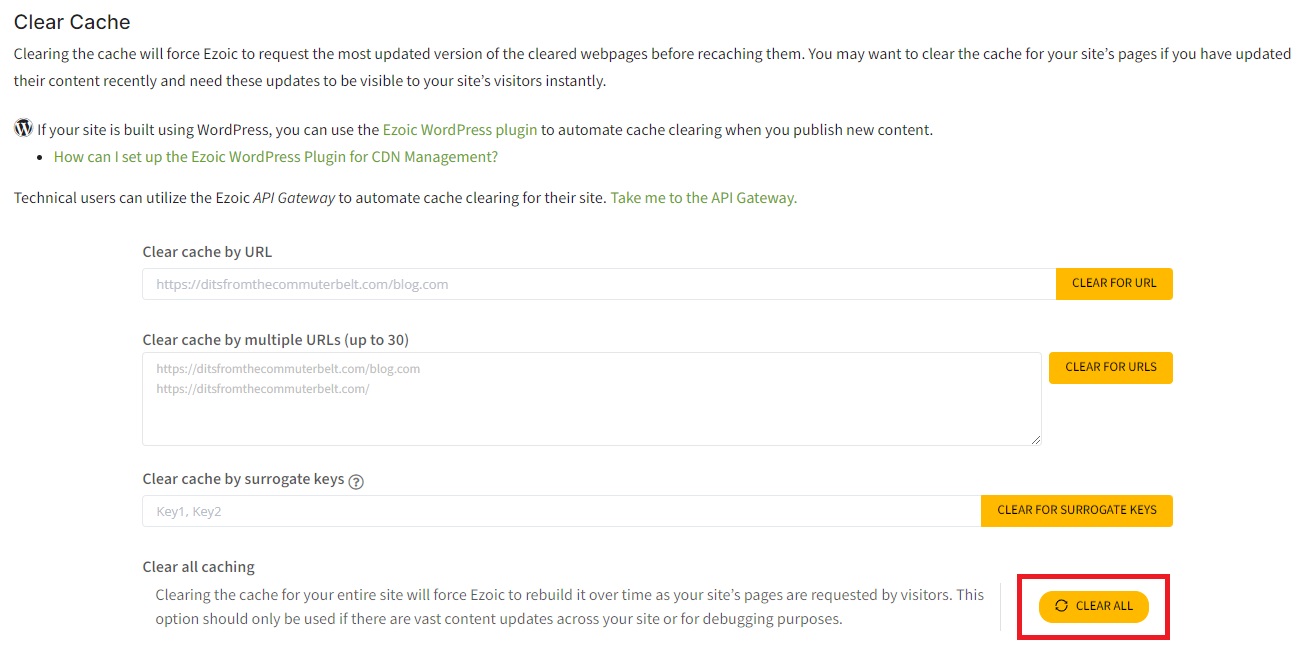
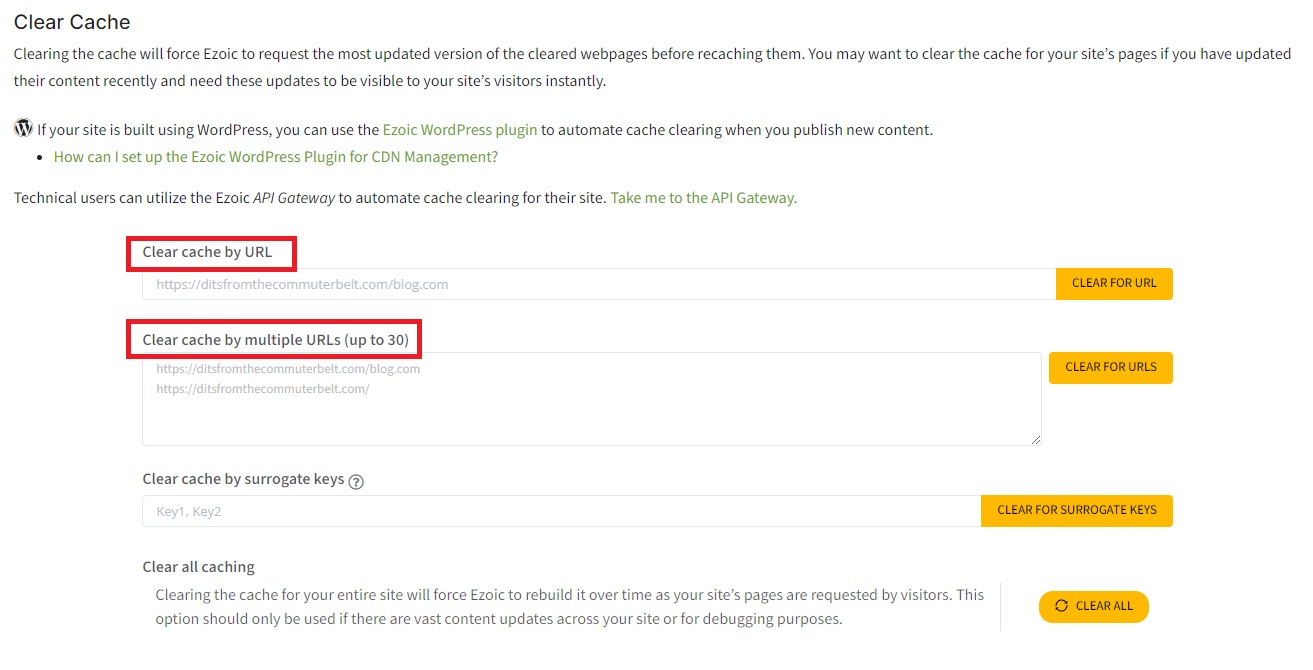
To clear a single URL:
- Enter the URL in the Clear cache by URL field and click Clear For URL.
To clear multiple specific URLs:
- Enter each URL in the Clear cache by multiple URLs field and click Clear for URLs.
Step 4: Create Exclusion Rules
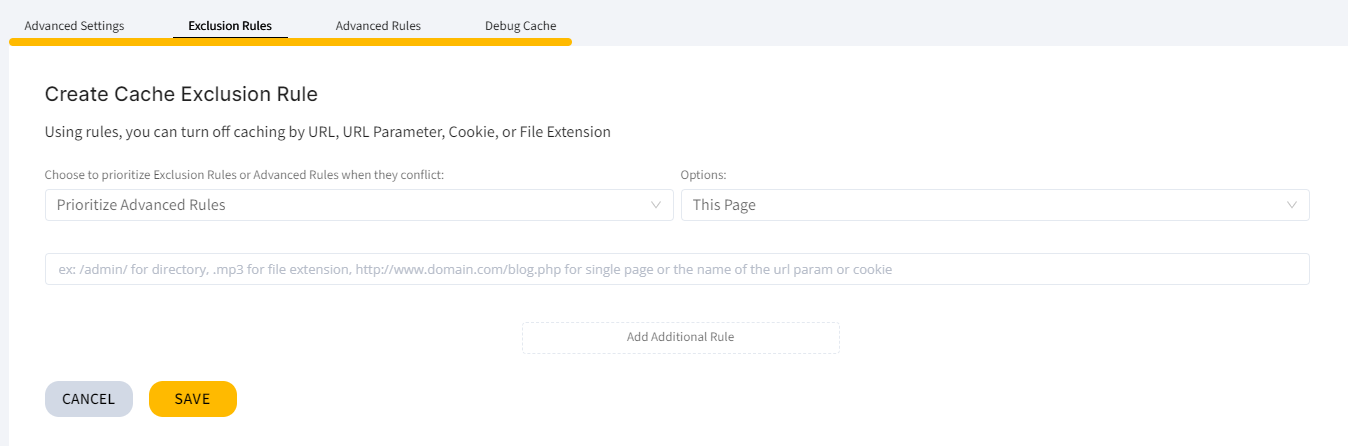
To prevent specific pages, directories, URL parameters, or cookies from being cached:
- In the Caching section, scroll to Advanced Settings and click the Exclusion Rules tab.
- Click Create New Rule.
- Select your Rule Target (page, directory, URL parameter, or cookie).
- Enter the value to be excluded.
- Click Save.
Step 5: Verify Caching is Active
To confirm caching is working on your site:
- Open Chrome and press F12 to open Developer Tools.
- Click the Network tab.
- Load or refresh a page on your site.
- Click your domain name in the list of requests (typically near the top).
- Select the Headers tab and look for the x-ezoic-cdn response header.
The header value indicates the caching status:
- Hit — the page is being served from Ezoic's cache
- Miss — the page was not served from cache
- Bypass — caching is active but this URL has been excluded
If the x-ezoic-cdn header is absent, caching is likely disabled. Confirm it is enabled at Settings > Caching.