Introduction
EzoicAds uses AI to evaluate thousands of variables for every individual visitor in real-time. Unlike traditional ad setups, Ezoic optimizes the entire session by determining the ideal ad density and placement for each specific user. This personalized approach ensures you capture the highest possible bid for every impression while protecting your site's long-term health and user experience. Follow these seven steps to successfully launch and automate your ad strategy.
Steps
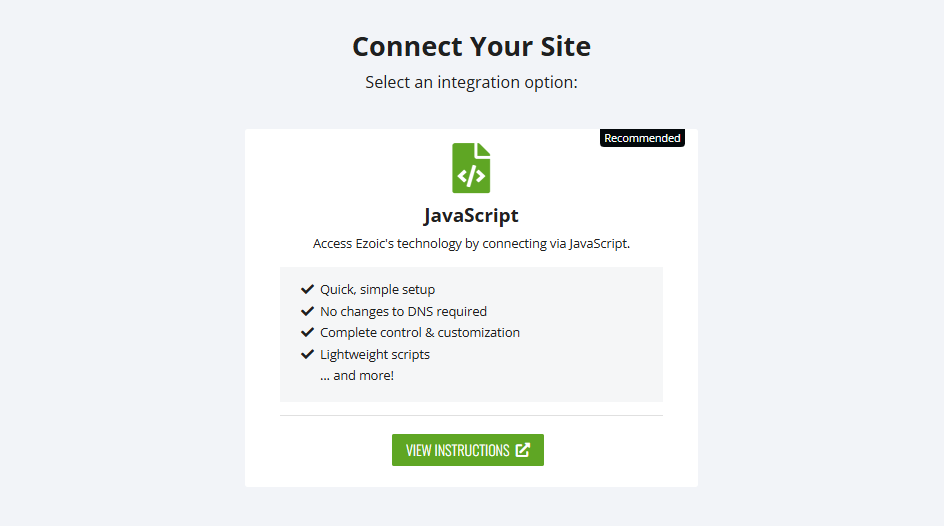
1. Integration
Before you can use EzoicAds, your site must be connected to the Ezoic network.
-
Recommendation: Use JavaScript integration (either manually or via the WordPress plugin).
2. Connect to Google (MCM)
To serve premium ad demand through Ezoic, you must be approved by Google's Multiple Customer Management (MCM) program.
-
Process: Fill out the Google Ad Manager application via your Ezoic dashboard.
-
Status: You cannot turn on EzoicAds until Google has reviewed and approved your domain.
3. Set Up Ads.txt
The ads.txt (Authorized Digital Sellers) file is a simple text file on your server that tells advertisers who is authorized to sell your ad inventory. Without a correctly configured file, most premium advertisers cannot bid on your site, leading to a significant loss in revenue.
-
WordPress Plugin (Recommended for WP): 1. In your Ezoic dashboard, go to EzoicAds > Ad Transparency > Ads.txt. 2. Select JavaScript as your integration type and click "Save." 3. In your WordPress admin, go to the Ezoic Plugin > Ads.txt Manager. 4. Enter your Account ID. Most publishers use the default ID 19390, but if you have a personal account at
adstxtmanager.com, enter your unique 4 or 5-digit ID instead. -
Manual Redirection (Non-WordPress): If you do not use WordPress, you must "point" your site's
ads.txtURL to Ezoic's manager via a 301 redirect in your.htaccessfile or Nginx config:Redirect 301 /ads.txt https://srv.adstxtmanager.com/19390/yourdomain.com - Name Server/Cloud Integration: Ezoic automatically detects your existing file and appends the necessary authorized sellers. No manual work is required.
4. Set Up Ad Locations
Method A: Automated WordPress Placeholders (Recommended for WordPress)
If you use the Ezoic WordPress plugin, you can let the system handle the technical placement for you.
-
In your WordPress admin, navigate to Ezoic > Ad Placements.
-
The plugin will automatically inject the necessary code into those positions across your entire site.
Method B: Manual Placeholder Injection
If you are not using WordPress or prefer a "hardcoded" approach, you will manually insert the ad location codes.
-
Generate Code: In your Ezoic dashboard, go to EzoicAds > Ad Locations > Placeholders.
-
Select Position: Click "New Placeholder" and choose the position (e.g., "Sidebar," "In-Content 1") or use the already added ad codes available.
-
Copy & Paste: Copy the generated snippet of code and paste it directly into your site’s HTML or your CMS "Custom HTML" blocks where you want that specific ad to appear.
Best Practices for Placeholders:
-
Quantity Matters: The AI needs choices. We recommend placing 15–20 placeholders per page. Ezoic will never fill all of them at once; the AI will only choose the best layout for revenue and user experience for that specific visitor.
-
Consistency: Ensure placeholders are placed in similar locations across your post templates to allow the AI to collect data effectively across your entire site.
5. Privacy & Consent Management
Google and global regulations require publishers to have a valid Privacy Policy and a mechanism for collecting user consent.
-
Enable Consent Management: Activate Ezoic’s free Consent Management tool in your dashboard under Settings > Privacy.
-
Configure Privacy Policy: Ensure your policy is updated to reflect your partnership with Ezoic.
6. Going Live
Once you have completed the integration, placed your placeholders, and received your MCM Approval from Google, your ads will go live automatically. There are no additional switches to flip—the presence of the Ezoic code on your site initiates the real-time auction.
7. The Ramp Up Period
Once ads are live, Ezoic enters a Ramp Up Period as it begins to gather data and calibrate its bidding and placement strategy.
-
Timeline: Expect an initial data-gathering period of 14 to 30 days.
-
Optimization: During this ramp up, the AI will identify which ad combinations perform best for your specific audience.
Troubleshooting
Ads are not appearing, but I'm integrated
Check your dashboard for any MCM "Action Required" notices. If Google has not yet approved your domain, ads will not show. Also, ensure your Ads.txt status is "Healthy."
I see empty spaces where ads should be
This is normal during the ramp up period. Ezoic's AI may choose not to show an ad if it determines that doing so would negatively impact that specific user's experience or if no high-value bid was available.
Can I stop ads on specific pages?
Yes. You can manage this by simply not placing placeholders on those pages, or by using "Page Rules" within the Ezoic dashboard to disable ad serving for specific URLs.